Mindbody Branded Web Tools offers a variety of linking options for one-time products, contracts, and gift cards that can be added to your website.
In This Article:
Please Note:
- Branded Web Tool Checkout Links can only be added with an HTML Element. Our Text Elements does not support adding them. If your purchase links are an existing Text Element, we recommend using Mindbody Consumer Mode Links instead.
- Mindbody does not offer a Branded Web Tool widget to display all pricing options at once.
Mindbody Branded Web Tool Guides:
- Links and buttons in branded web tools FAQ
- How to create Buy Now - Pricing Option links (branded web tools)
- How to create gift card links (branded web tools)
Adding Purchase Links
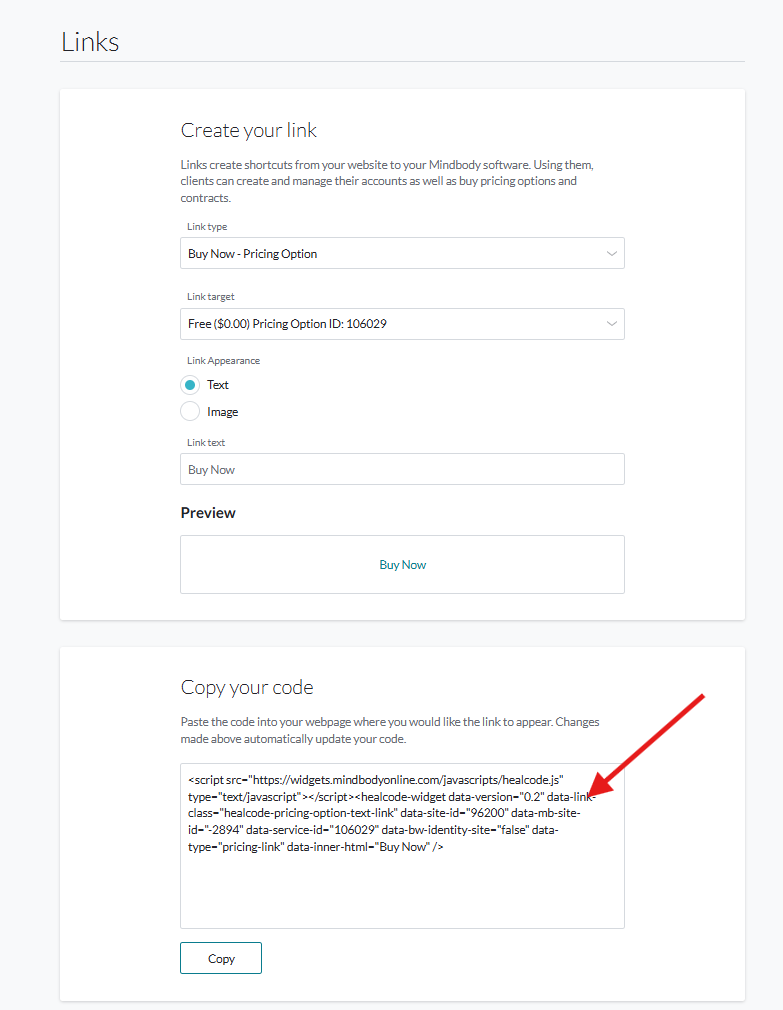
- In Mindbody Branded Web Tool Manager, navigate Links and then select either Buy Now - Pricing Option or Buy Now - Contracts
- Select the desired product and then copy the code. Note that we recommend keeping the Link Appearance set to Text, and feel free to adjust the Text Link.
- Log in to your website (How to Login)
- Navigate to the page you wish to add the widget to.
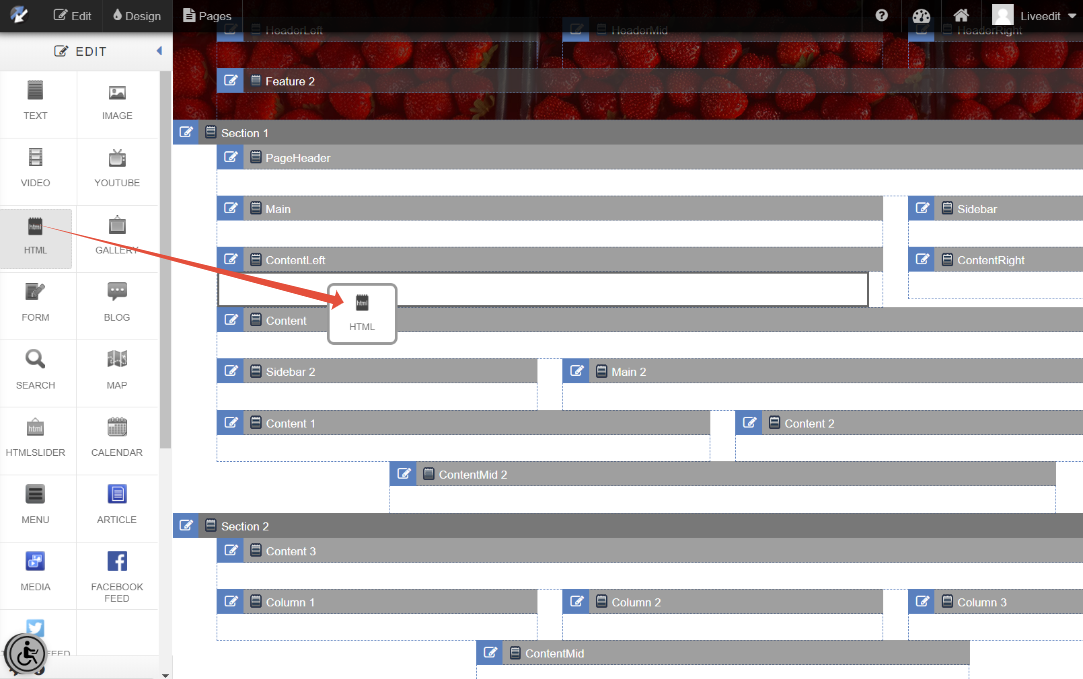
- Click Edit to jump into Edit Mode.
- Drag and drop an HTML Element into a content area.
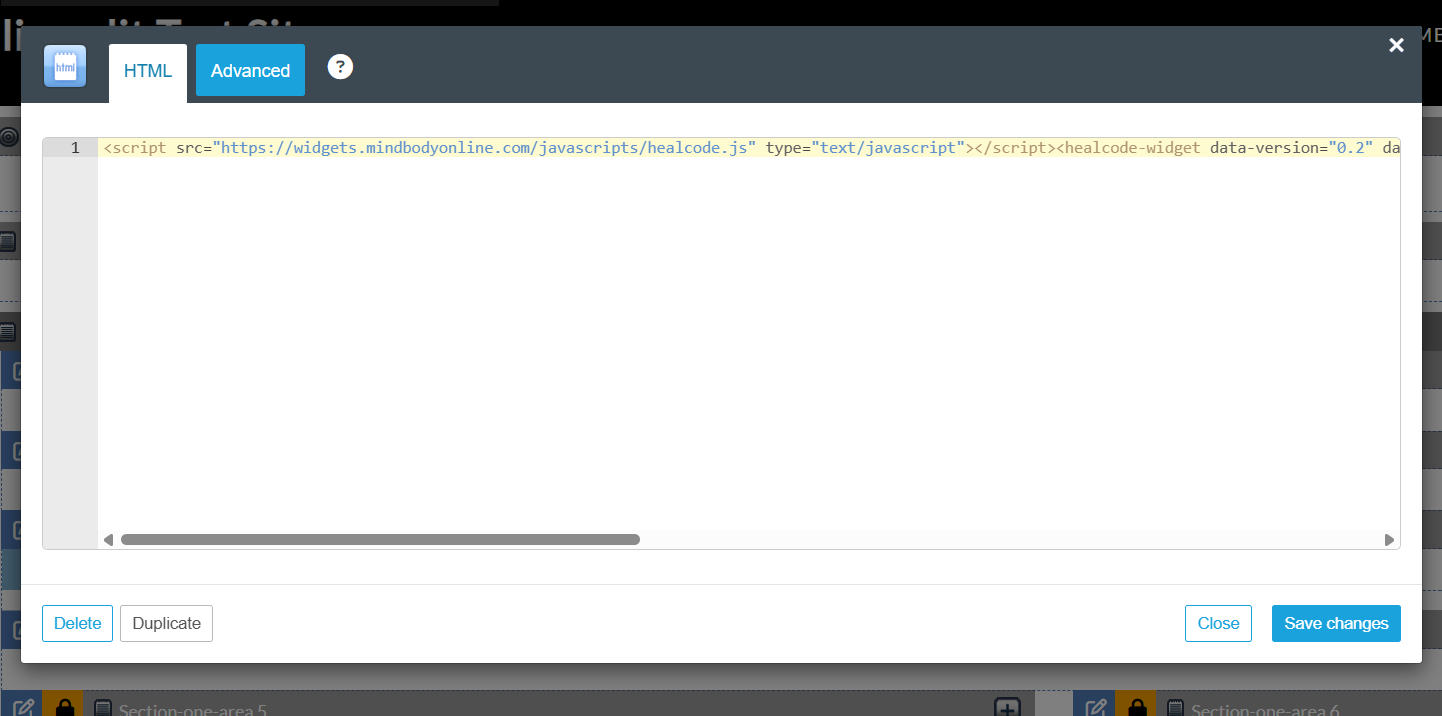
- Paste your copied code snippet and then click Save Changes to save.
Adding Button Styling To Purchase Links
To add button styling, there are two options:
1) Branded Web Tools Image Option
When creating a Branded Web Tool buy link, select Image over Text, then add a URL to your image.
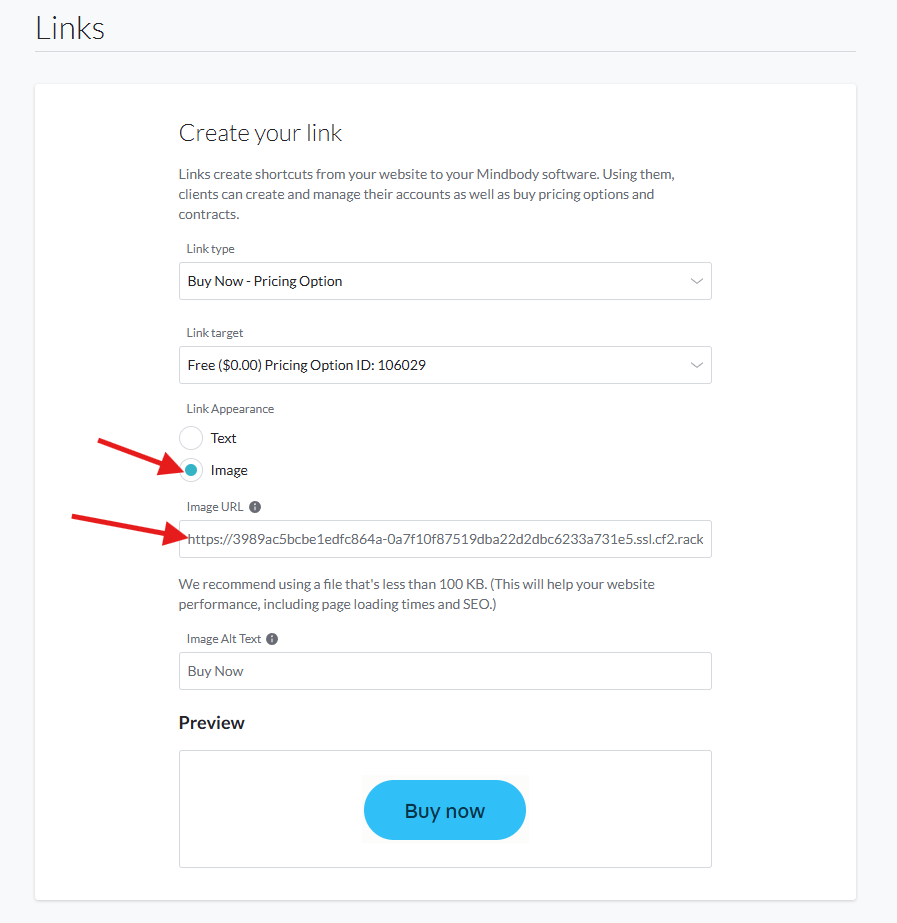
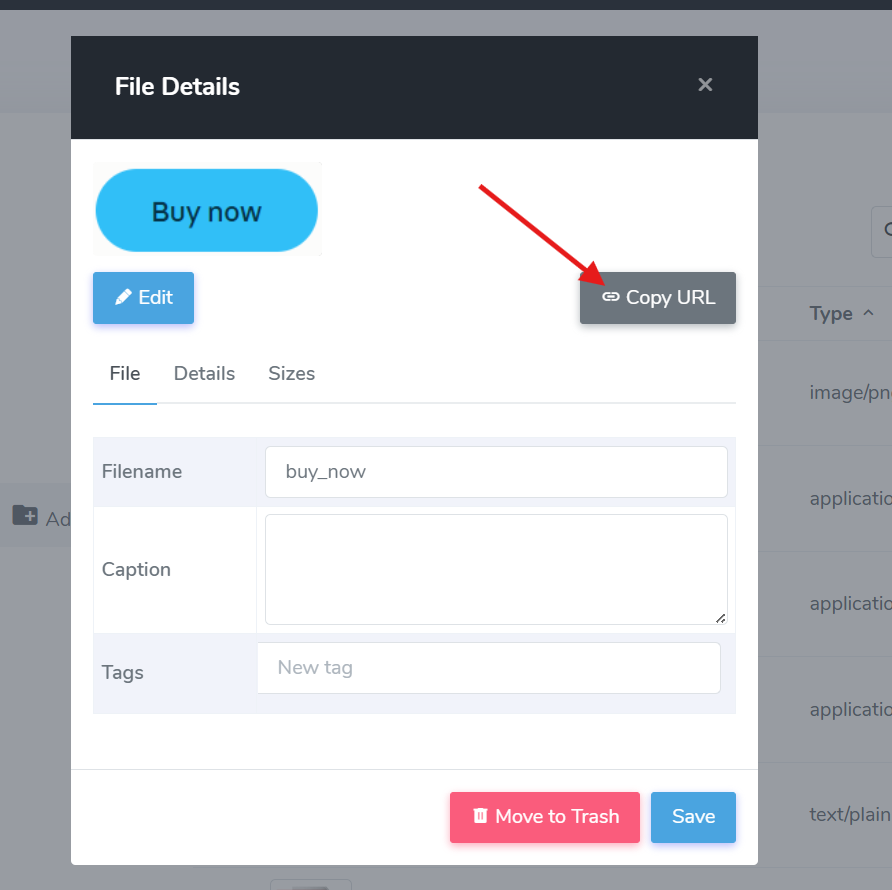
How to upload and optain an URL for an image
- Log into your liveedit website
- Navigate to the Dashboard
- Click on File Manager
- Click on Upload File to upload your image.
- Once uploaded, locate the image and click on it name to bring up File Details.
- Click on Copy URL to copy the URL link.
2) Your website's design template built-in button styling
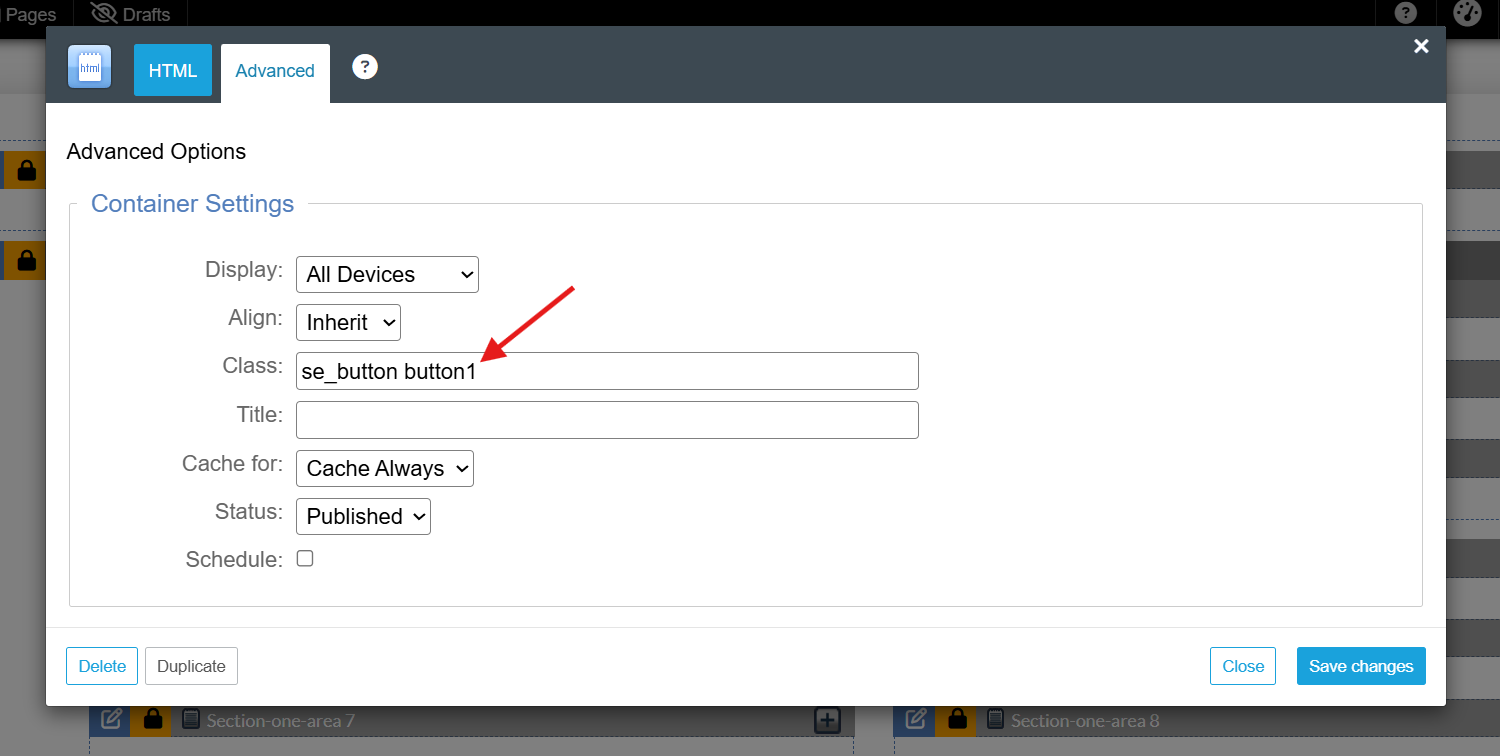
Your website's design may includes built-in button styling that can be added under the Advanced tab of a placed mindbody Branded Web Tools purchase link.
For example, try adding se_button button1 or se_button button2 within the Class field under Advanced. Please note that your design may include different button class names.