
Mindbody Branded Web Tools offers a Login/Register link option and can be added as a tab to your main navigation menu or a standard link.
In This Article:
Add a Login/Register Link
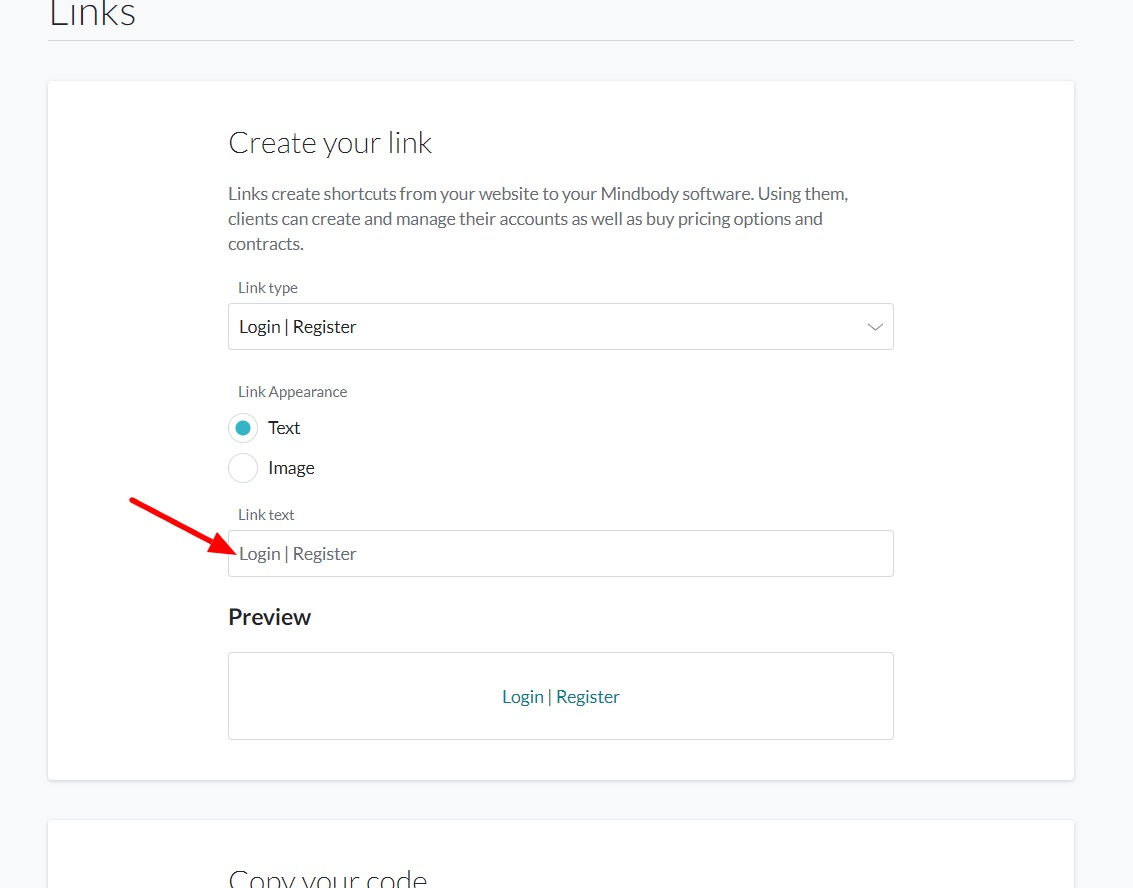
- Create the link within the Mindbody Branded Web Tool Manager and copy the code.
- When creating the link, please make sure to adjust the Link Text to what you wish to have the tab displayed as.
- Log in to your liveedit website (How to Login)
- Navigate to the page you wish to add the widget to.
- Click Edit to jump into Edit Mode.
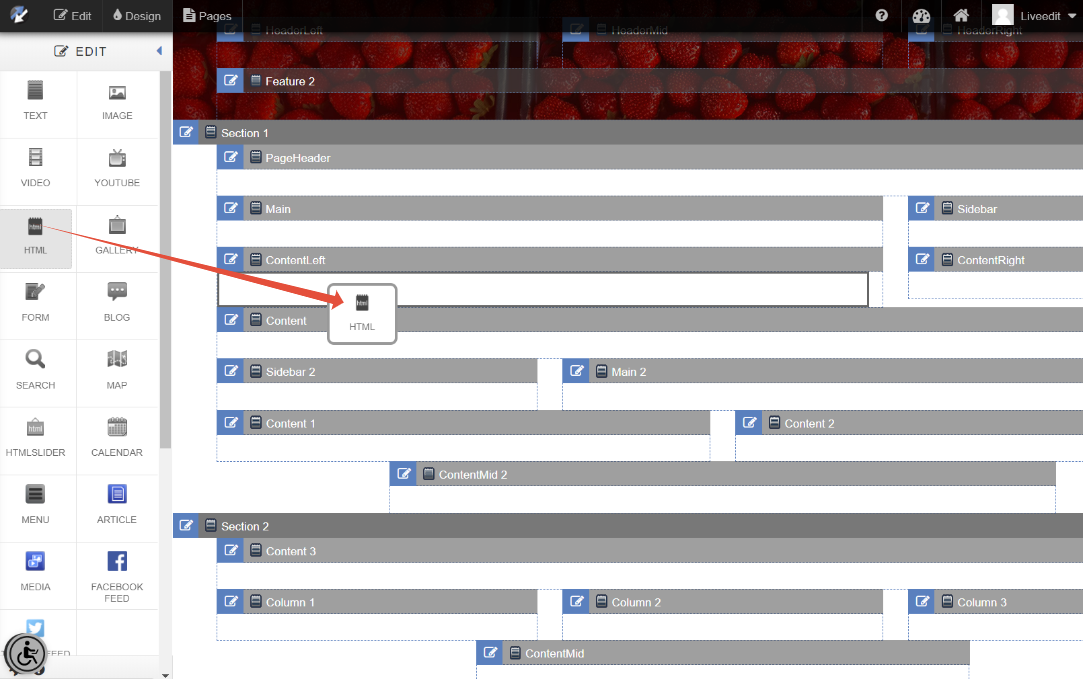
- Drag and drop an HTML Element into a content area.
- Paste your copied code snippet and then click Save Changes to save.
Note: You may need to refresh the page after saving to see the widget load in.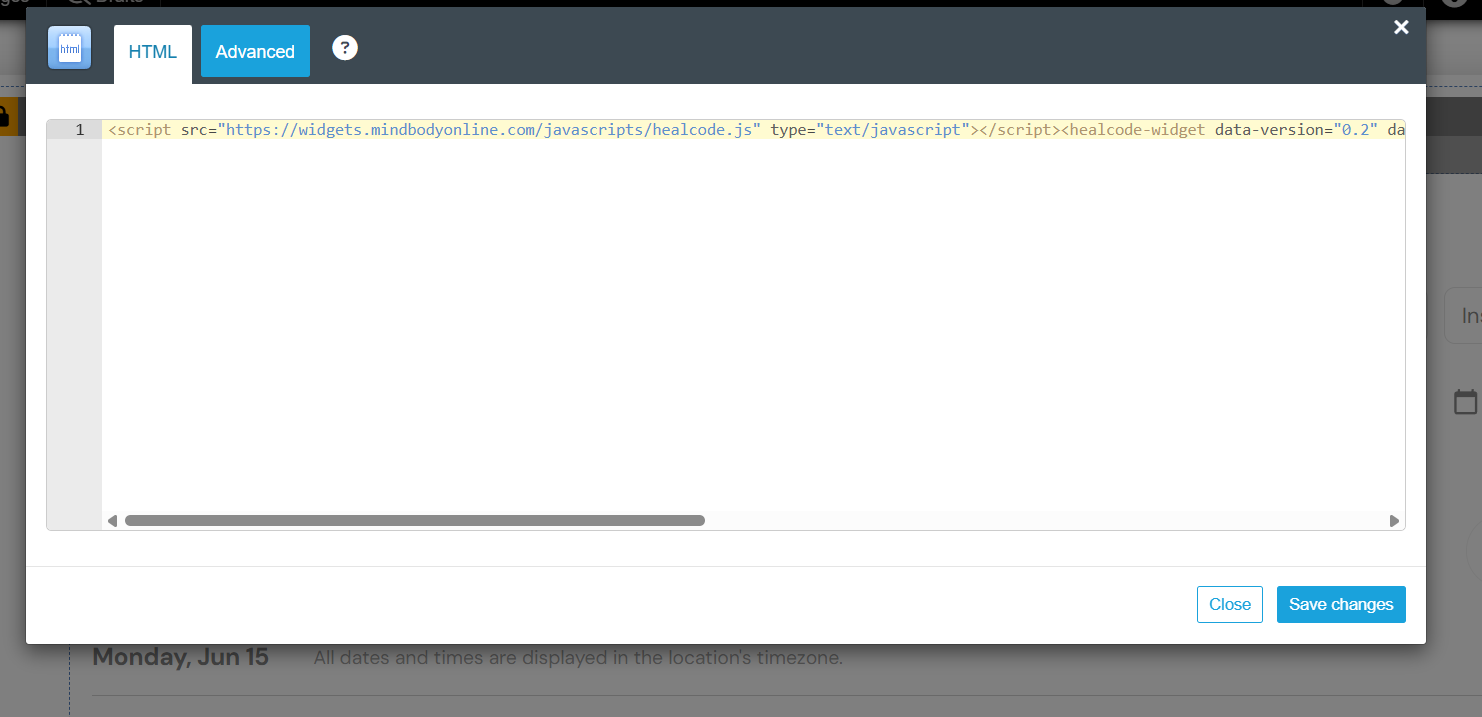
Adding as a Navigation Tab
Mindbody Branded Web Tools offers a Login/Register link option and can be added as a tab to your main navigation menu
- Create the link within the Mindbody Branded Web Tool Manager and copy the code.
- When creating the link, please make sure to adjust the Link Text to what you wish to have the tab displayed as.
- Log in to your liveedit website (How to Login)
- Click on Pages
- Click on Add Item
- Select the following options:
- Type = Select Advanced
- Advanced = Paste in the code snippet from the mindbody Branded Web Tool Manager.
- Display Name = Enter the same value as the widget Link text
- Menu Location = Select your Main Menu
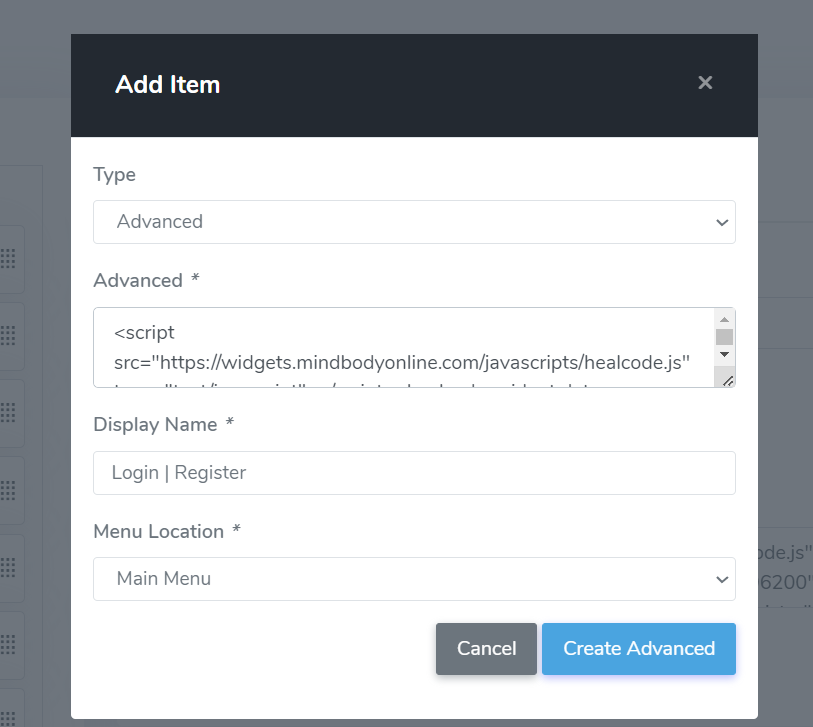
- Click Create Advanced.
- The order of the page in your menu can be adjusted after it's created - Guide: Moving and Rearranging Pages.