
Mindbody offers a variety of links you can add to your website to take guests out to your Mindbody Consumer Mode website for purchasing, my account, or booking a class.
In This Article:
How to obtain a Mindbody Consumer Mode Link
- Log in to your Mindbody account.
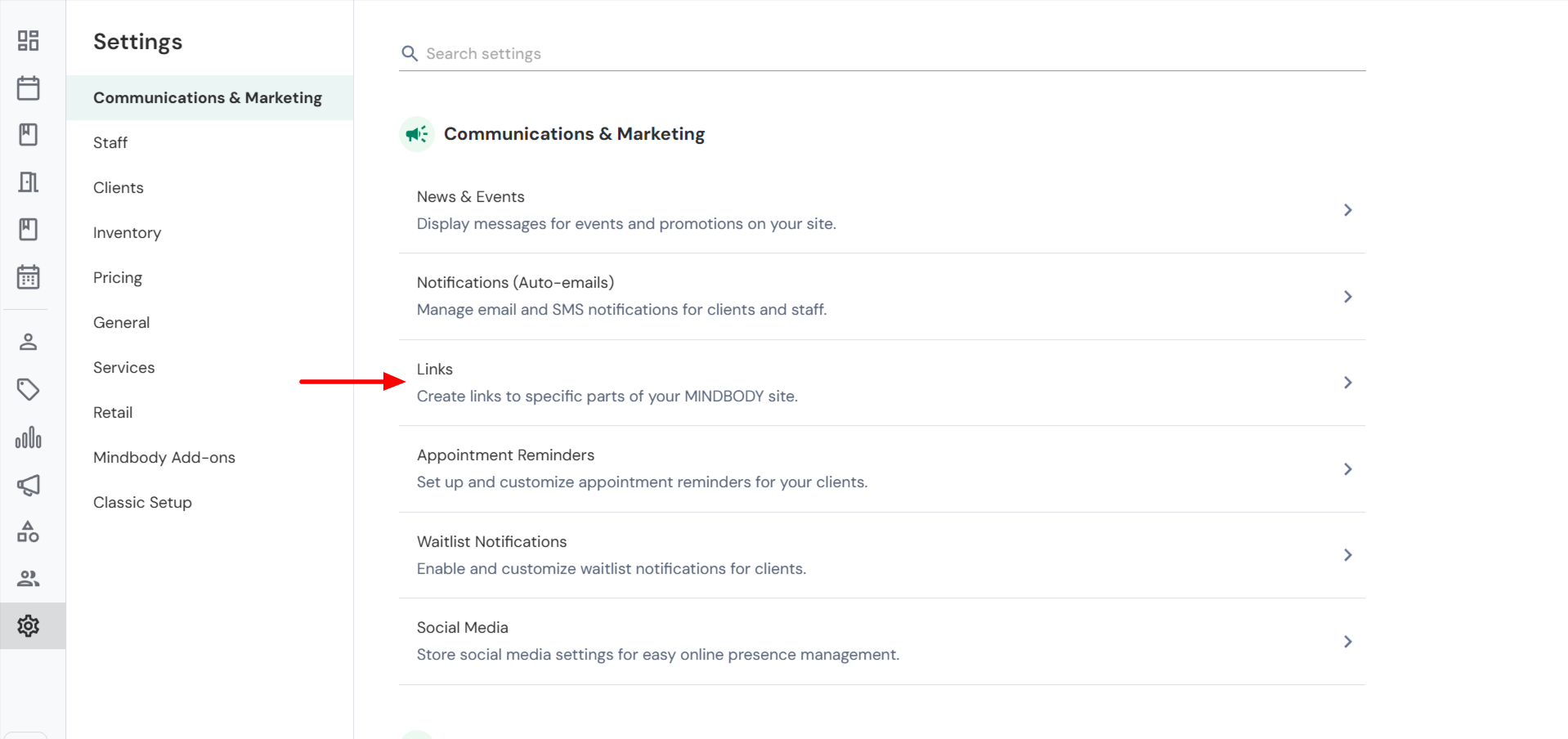
- Click Settings > Communications & Marketing > Links.
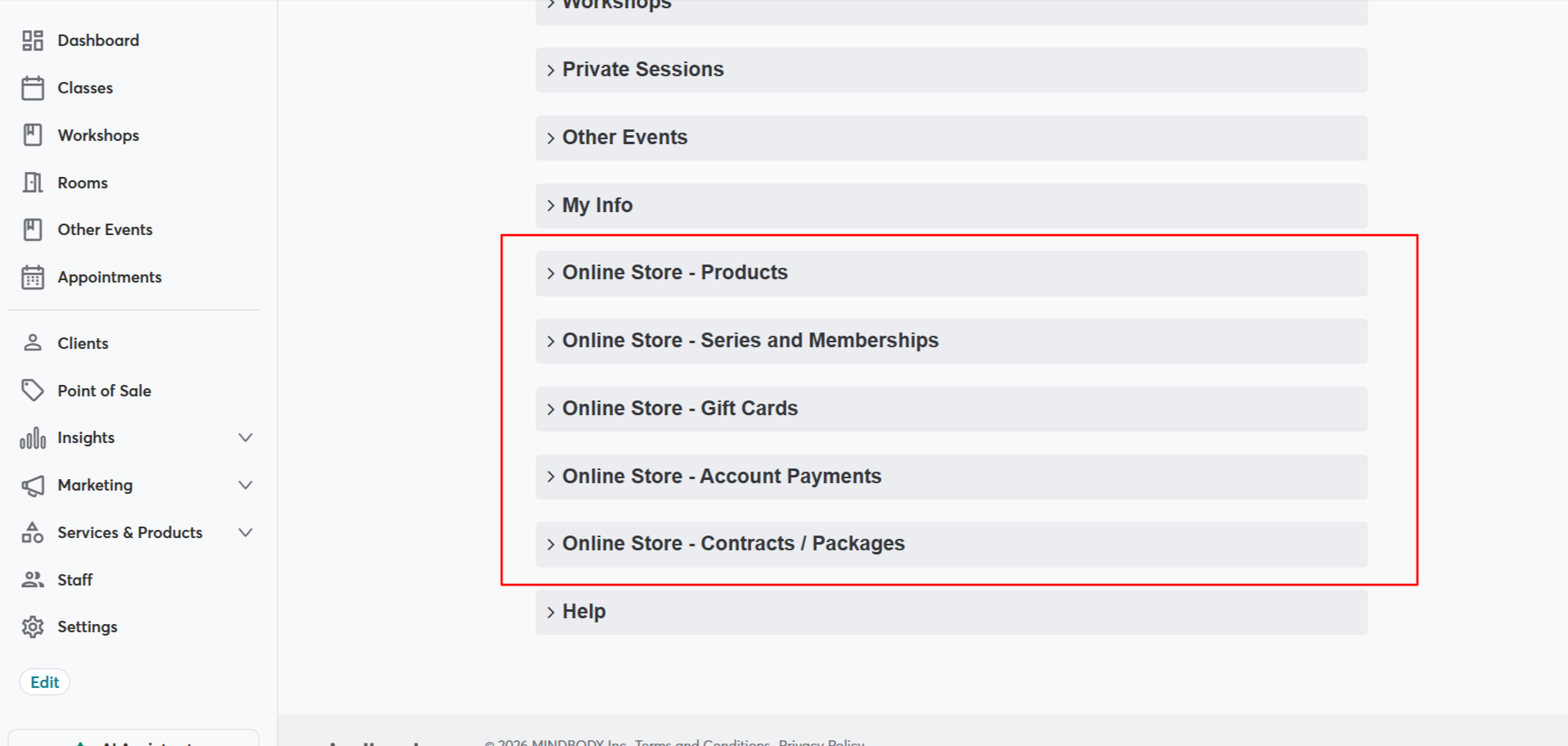
- Expand one of the Online Store dropdowns to find your product
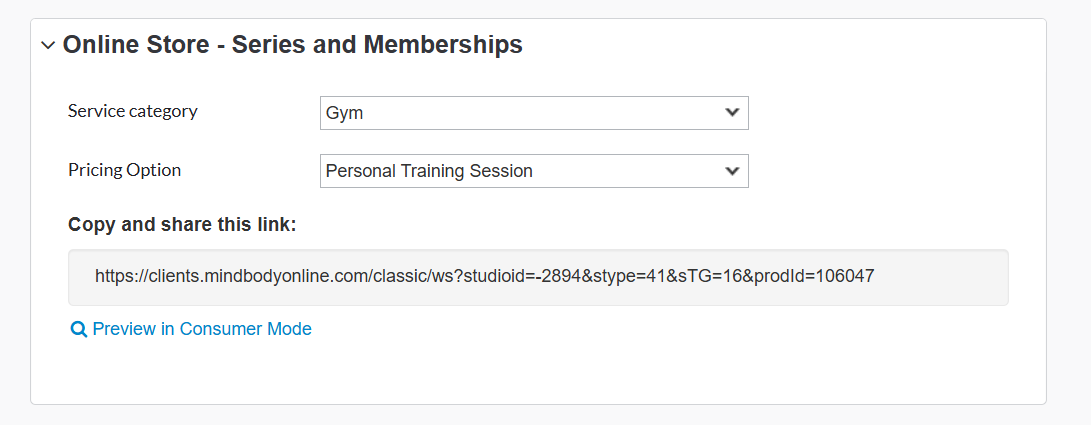
- Use the dropdown filters to find the specific product you wish to link, then click the generated link to copy it to your clipboard.
Mindbody Guides:
- How to create links to your Mindbody consumer site
- How to create links to contracts and packages
- How to create links to specific products
- How to create links to the My Info screen
- Links: Creating links to specific gift cards
How to Add Mindbody Consumer Mode Links to Liveedit
- Log in to your liveedit website.
- Navigate to the page you wish to edit.
- While in Edit Mode, click on an already placed Text Element that you wish to update, or drag and drop a new one.
- Highlight the text you wish to link and then click on the Insert/Edit Link icon.
Example: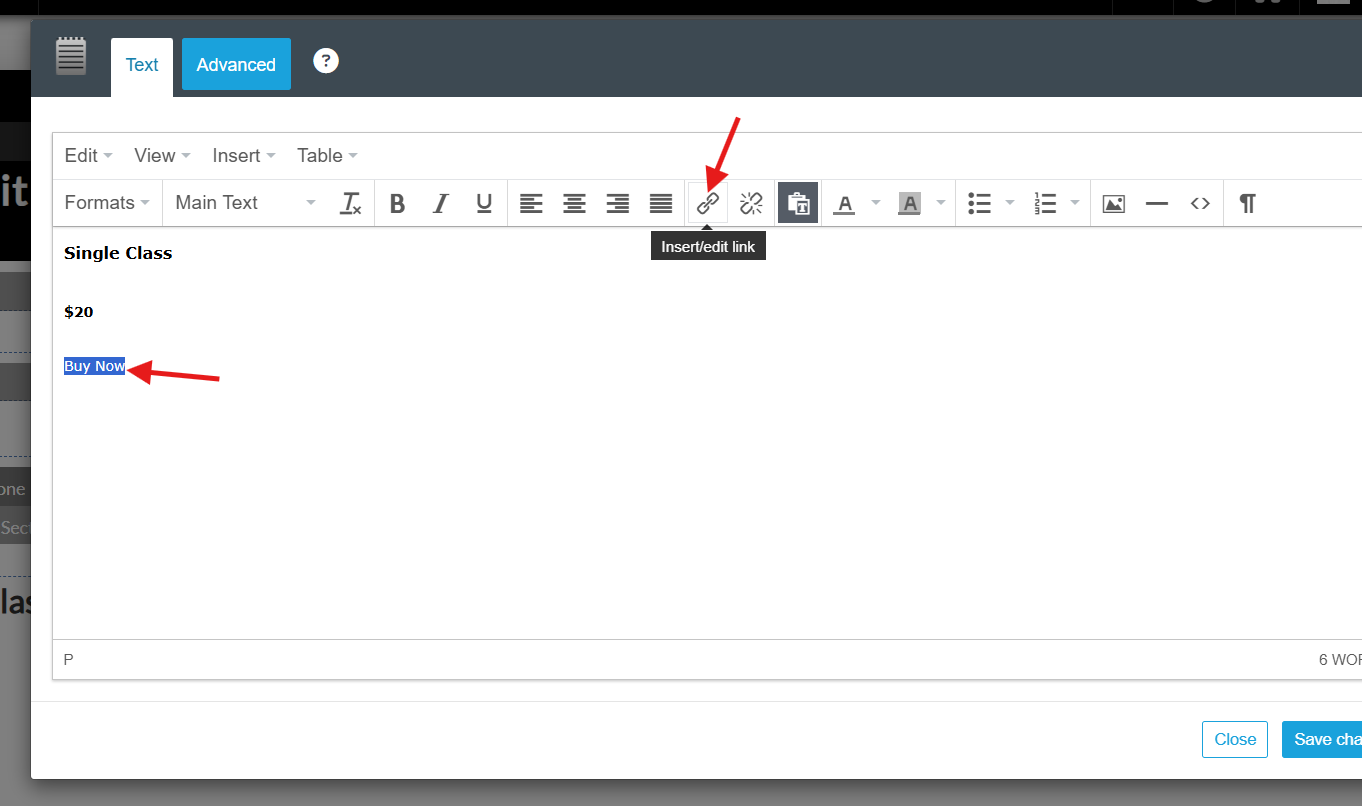
- In the window that appears, set the following options, then hit Ok.
URL = Paste in your Mindbody link copied earlier.
Target = Set to New Window.
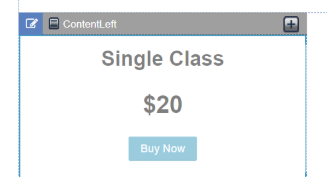
Class (Optional) = Set to Button1 to apply button style, or leave blank.
Example: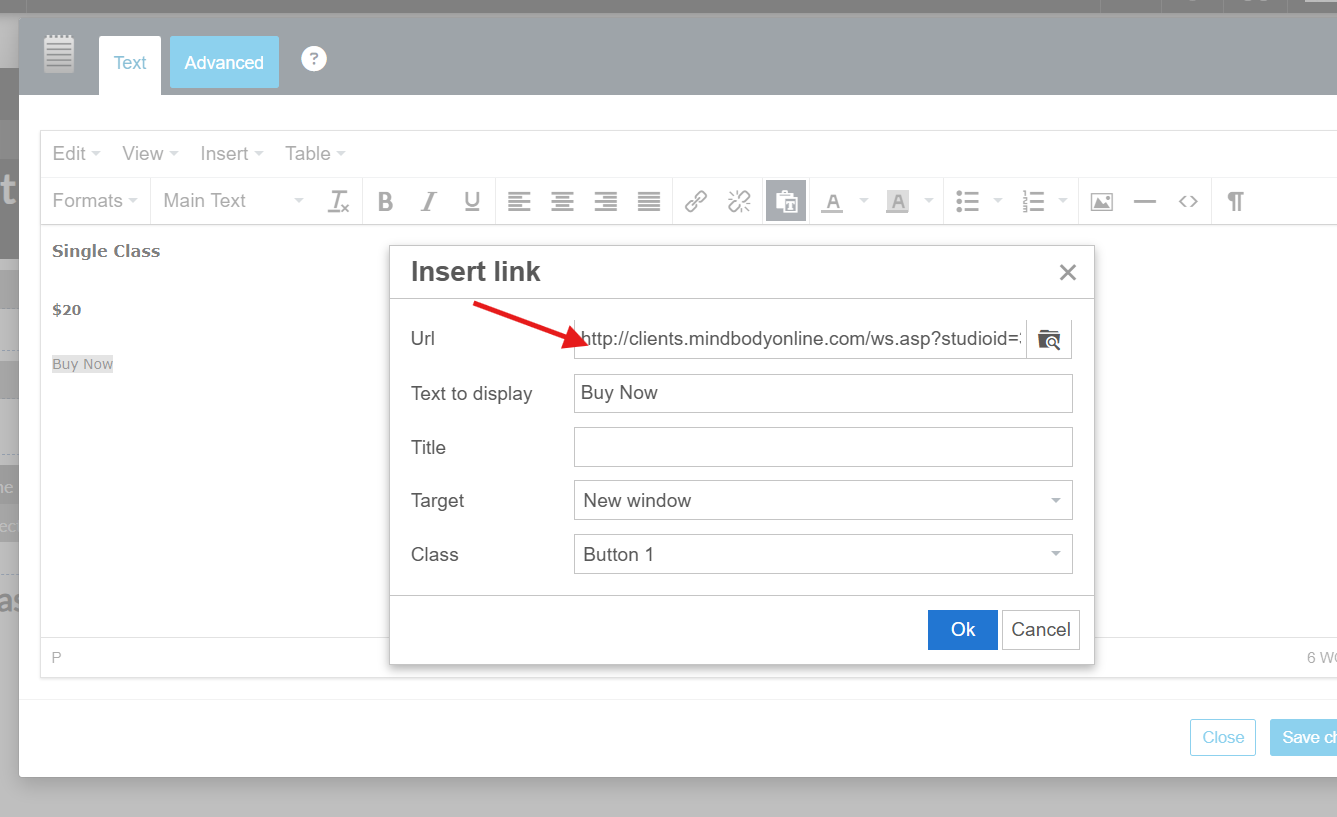
- Click Save Changes to save your changes.
- Your link is now live for visitors!
FAQ
- Why do my links open into Mindbody Business Mode?
When testing the links you create, you need to either log out of Mindbody Business Mode, open a private browsing window, or enter the link in an alternate browser (e.g., Firefox instead of Chrome).