
The YouTube Element is a quick and easy way to embed videos from YouTube onto your website for visitors to view.
In This Article:
Adding a YouTube Element
- Log in as an admin.
- Navigate to the page you wish to add the YouTube video to.
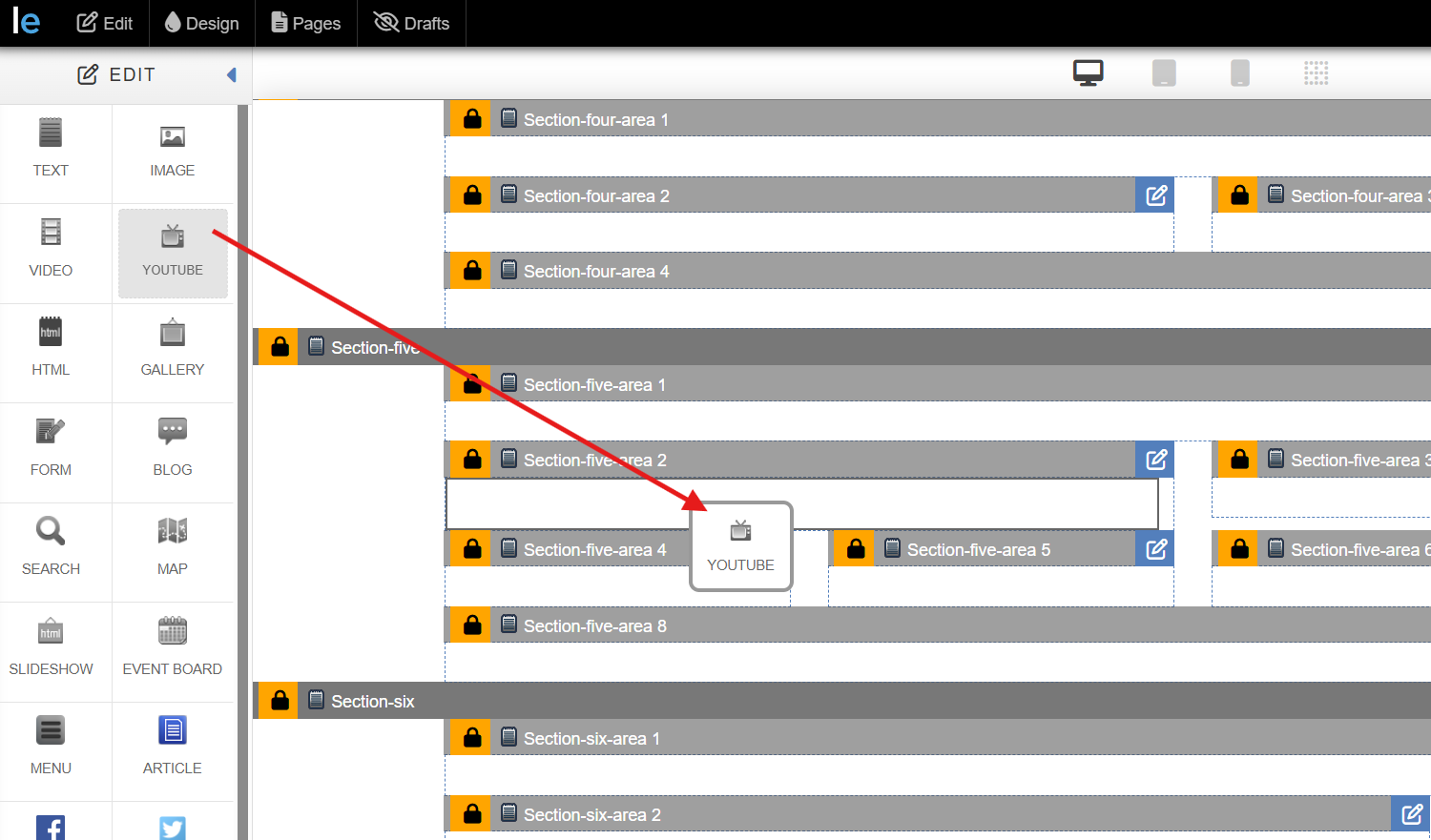
- Drag and drop the YouTube Element into a Content Area. Note that the size of YouTube is dependent on how large the Content Area is.
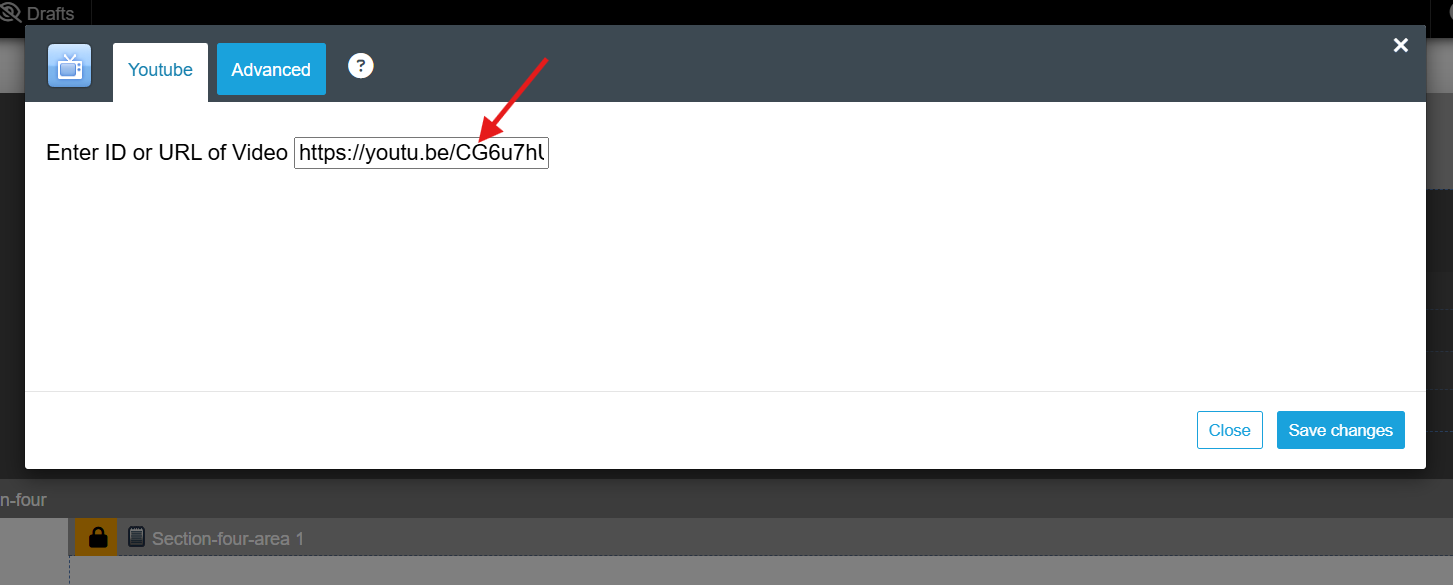
- Paste a YouTube URL into the Enter ID or URL of Video field and click Save Changes.
Advance Tab Settings

Video Settings pertain to the playback and appearance of the video.
- Auto Hide Controls: Select to hide the controls of the video automatically.
- Auto Play: Select whether you'd like the video to play once the page loads.
- Progress Bar Color: Set the color of the video progress bar.
- Controls: Select to show or hide video controls.
- Width: You can set the width of the video inside the content area. Choose percent or pixel.
- Mobile Width: set the width for the mobile version.
- Show Related Links: Choose to display related links during video playback.
- Show Info: Opt to display video information.
- Control Theme: Set the theme of video controls to Light or Dark.
- Loop Playback: Set the video to continuously play.